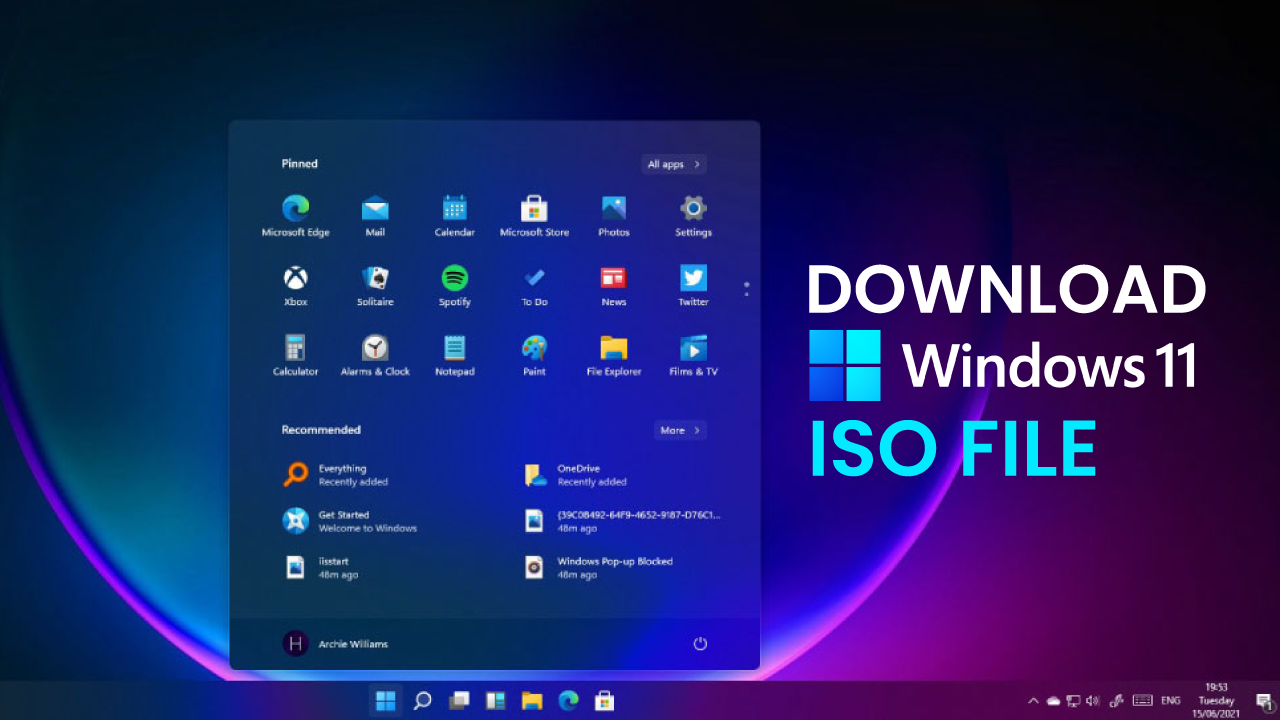
Windows 11 has become Microsoft’s flagship operating system, offering a modern interface, improved security, and better performance for work, gaming, and everyday computing. Whether you’re planning a clean installation, upgrading an existing PC, or setting up a virtual machine, downloading the Windows 11 ISO is one of the most reliable ways to get started.
Unlike standard upgrades through Windows Update, an ISO file gives you complete control over the installation process. You can create a bootable USB drive, reinstall Windows on multiple compatible devices, or keep a backup copy for future use.
In this guide, you’ll learn what a Windows 11 ISO is, why it’s useful, how to download it safely, and the best practices for a smooth installation.
What Is a Windows 11 ISO?
A Windows 11 ISO is a complete disk image containing all the files required to install Microsoft’s operating system. Think of it as a digital version of a physical installation DVD.
The ISO file allows you to:
- Perform a clean installation
- Upgrade an existing Windows installation
- Create bootable USB installation media
- Install Windows 11 in a virtual machine
- Keep a recovery copy for future use
Because the file contains the full operating system, it provides more flexibility than relying solely on Windows Update.
Why Download the Windows 11 ISO?
Many users prefer downloading the ISO because it offers greater control during installation.
Some common reasons include:
- Installing Windows on a new SSD
- Repairing a corrupted operating system
- Creating installation media before upgrading
- Installing Windows without a constant internet connection
- Setting up multiple compatible computers
Having an ISO available also makes future reinstallations significantly faster.
System Requirements Before Installation
Before downloading and installing Windows 11, verify that your PC meets Microsoft’s minimum requirements.
| Requirement | Minimum Specification |
|---|---|
| Processor | 64-bit, 1 GHz or faster, 2 or more cores |
| RAM | 4 GB |
| Storage | 64 GB or more |
| Firmware | UEFI with Secure Boot |
| TPM | TPM 2.0 |
| Graphics | DirectX 12 compatible |
| Display | 9-inch HD display (720p) |
| Internet | Required for setup and updates |
Checking compatibility beforehand helps avoid installation interruptions.
Windows 11 ISO vs Windows Update
Both installation methods work well, but each serves different purposes.
| Feature | Windows 11 ISO | Windows Update |
|---|---|---|
| Clean Installation | ✔ Yes | ✘ No |
| Repair Existing Windows | ✔ Yes | Limited |
| Bootable USB Support | ✔ Yes | ✘ No |
| Offline Installation | ✔ Yes | ✘ No |
| Convenience | Moderate | Excellent |
| Advanced Control | High | Low |
If you simply want the latest version on your everyday PC, Windows Update is usually sufficient. However, the ISO remains the preferred choice for advanced users, technicians, and anyone performing a fresh installation.
How to Download Windows 11 ISO Safely
Downloading Windows from official sources is always the safest option.
The general process is simple:
- Visit Microsoft’s download page.
- Select the latest Windows 11 release.
- Choose your preferred language.
- Download the ISO file.
- Verify you have enough storage space.
Avoid downloading installation files from unknown websites, as unofficial sources may contain modified or unsafe versions.
Creating a Bootable USB Drive
After downloading the ISO, you’ll usually want to create a bootable USB drive.
You’ll need:
- An 8 GB or larger USB flash drive
- The downloaded Windows 11 ISO
- A trusted bootable media creation tool
Once the USB drive is ready, you can boot directly from it and begin installing Windows.
This method is especially useful when replacing a hard drive, upgrading to an SSD, or building a new PC.
Installing Windows 11 Using an ISO
The installation process is straightforward.
1. Back Up Important Files
Always save personal documents, photos, and other important files before performing a clean installation.
2. Boot From the USB Drive
Restart your computer and choose the USB device from the boot menu.
3. Select Installation Preferences
Choose:
- Language
- Time format
- Keyboard layout
4. Begin Installation
Follow the on-screen instructions.
You can:
- Upgrade while keeping files
- Perform a completely fresh installation
5. Complete Windows Setup
After installation finishes, configure:
- Microsoft account
- Privacy settings
- Windows updates
- Device preferences
Most modern PCs complete installation in less than an hour.
Benefits of Using the ISO Version
Using the installation image offers several advantages over traditional upgrades.
Cleaner Performance
A fresh installation removes years of accumulated temporary files and software leftovers.
Better Troubleshooting
If Windows becomes unstable, reinstalling from an ISO often resolves persistent issues.
Flexible Deployment
The same installation media can be used on multiple compatible systems.
Reliable Recovery
Keeping an ISO available means you’re prepared even if Windows becomes unbootable.
Common Installation Issues
Although installation is generally smooth, some users encounter common problems.
TPM or Secure Boot Errors
Older computers may not support Windows 11’s security requirements.
Storage Space
Insufficient disk space can interrupt installation.
Missing Drivers
Occasionally, network or storage drivers need updating after installation.
Boot Problems
Incorrect BIOS or UEFI settings may prevent the USB installer from loading.
Most of these issues can be resolved by updating firmware, enabling Secure Boot, or checking hardware compatibility beforehand.
How Windows 11 ISO Is Used in Everyday Scenarios
Imagine replacing an old hard drive with a faster SSD. Instead of cloning years of accumulated files and unnecessary software, you install Windows 11 using the ISO image.
The result is a clean operating system, faster startup times, improved responsiveness, and fewer software conflicts. Many users find this approach delivers a noticeably smoother experience than upgrading an existing installation.
Best Practices After Installation
Once Windows 11 is installed, spend a few minutes optimizing your system.
Recommended steps include:
- Install Windows Updates
- Update graphics drivers
- Enable device encryption if supported
- Install motherboard and chipset drivers
- Create a restore point
- Remove unnecessary startup applications
- Install trusted antivirus software if needed
These small steps contribute to long-term stability and better performance.
My Experience
From my experience following Windows installation best practices over the years, performing a clean install with an ISO almost always results in a smoother, faster, and more reliable system than carrying over years of accumulated settings and software.
Is the Windows 11 ISO Right for You?
If you simply want routine updates, Windows Update remains the easiest option.
However, downloading the ISO is ideal if you plan to:
- Upgrade storage hardware
- Build a new PC
- Repair Windows
- Create installation media
- Install Windows in a virtual machine
- Keep a recovery copy for emergencies
Its flexibility makes it a valuable resource for both everyday users and IT professionals.
Also Read:Best Budget Gaming Chairs for Comfort & Value in 2026
Conclusion
The Windows 11 ISO provides one of the most reliable and versatile ways to install or reinstall Microsoft’s latest operating system. Whether you’re upgrading hardware, troubleshooting software issues, or preparing multiple systems, an ISO offers greater control than standard update methods.
By downloading the installation file from Microsoft’s official source, verifying your PC meets the system requirements, and creating a bootable USB drive, you can enjoy a clean installation that often improves stability, performance, and overall reliability. With proper preparation and backups, the process is straightforward even for users attempting it for the first time.
Frequently Asked Questions
Is downloading a Windows 11 ISO free?
Yes. Microsoft allows users to download the installation image free of charge. A valid license is required to activate Windows.
Can I install Windows 11 without a USB drive?
Yes. You can mount the ISO within Windows to perform an upgrade or use it with virtualization software.
Does installing from an ISO erase my files?
A clean installation removes existing files on the selected drive. Always back up important data before proceeding.
Can I use one ISO on multiple computers?
Yes, provided each compatible computer has its own valid Windows license.
How large is the Windows 11 ISO?
The download size varies by release but is generally between 5 GB and 7 GB.
Is the ISO updated regularly?
Yes. Microsoft periodically releases refreshed ISO images that include the latest feature updates and security improvements.