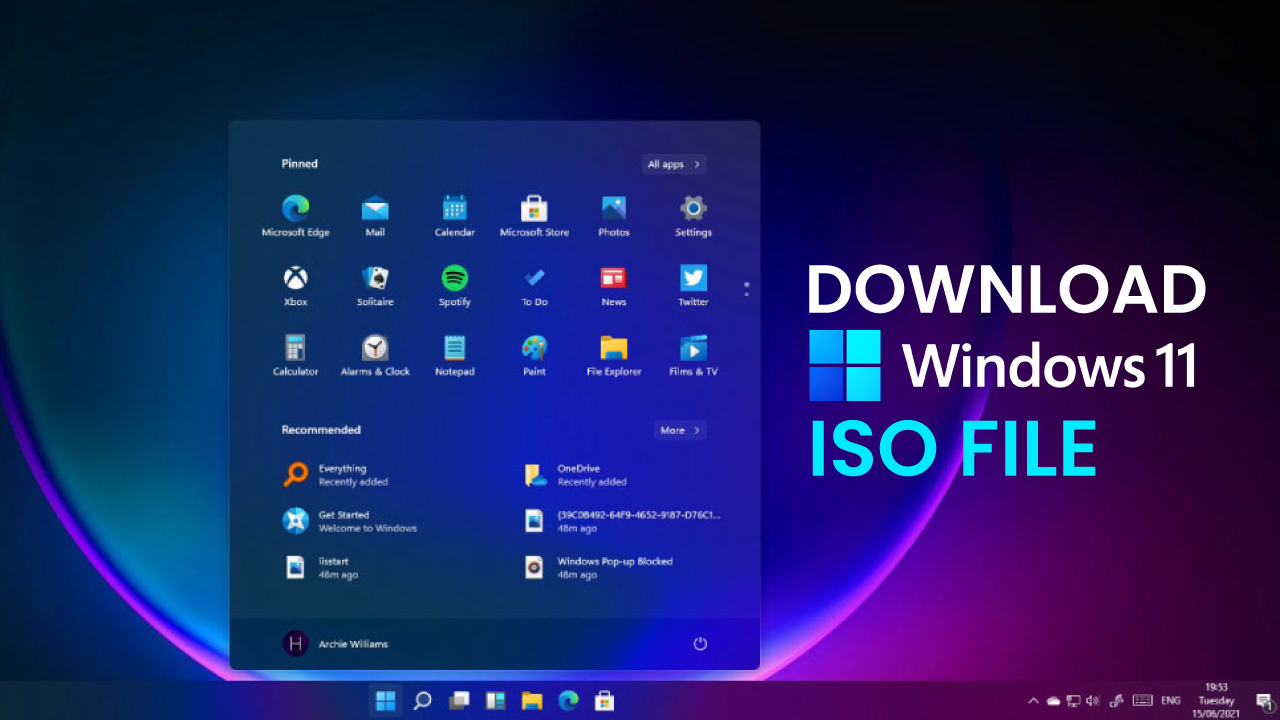
If you’re planning to download Windows 11, you’re not alone. Microsoft’s latest operating system has become the preferred choice for users looking for a cleaner interface, stronger security, and improved performance. Whether you’re upgrading from Windows 10 or installing the OS on a new PC, understanding the right download method can save time and prevent installation issues.
Windows 11 introduces a modern design, enhanced multitasking features, better gaming support, and regular security improvements. However, before you begin, it’s important to confirm that your computer meets the minimum system requirements and to choose the installation method that best fits your needs.
Why Upgrade to Windows 11?
Windows 11 isn’t just a visual refresh. It offers several meaningful improvements that make everyday computing smoother and more efficient.
Some of the biggest advantages include:
- Redesigned Start menu and taskbar
- Faster performance on supported hardware
- Enhanced security with TPM 2.0 and Secure Boot
- Better virtual desktop management
- Snap Layouts for improved multitasking
- DirectStorage support for compatible gaming PCs
- Improved touch, pen, and voice input
For many users, these improvements create a more polished and productive experience without changing the familiar Windows workflow.
Check System Requirements Before Installing
Before downloading the operating system, verify that your PC is compatible.
Here are the minimum requirements:
| Component | Minimum Requirement |
|---|---|
| Processor | 1 GHz or faster, 2 or more cores, compatible 64-bit CPU |
| RAM | 4 GB |
| Storage | 64 GB or larger |
| Firmware | UEFI with Secure Boot |
| TPM | Version 2.0 |
| Graphics | DirectX 12 compatible |
| Display | HD (720p), 9 inches or larger |
| Internet | Required for setup and updates |
If your system doesn’t meet these requirements, installation may fail or future updates may not be supported.
Different Ways to Download Windows 11
Microsoft offers multiple installation options depending on your situation.
1. Windows Update
The simplest option is through Windows Update.
If your computer is eligible, navigate to:
Settings → Windows Update
If the upgrade is available, you’ll see an option to install Windows 11 with just a few clicks.
This method keeps your files, apps, and most settings intact.
2. Installation Assistant
The Installation Assistant is designed for users upgrading a supported Windows 10 PC.
It automatically checks compatibility, downloads installation files, and guides you through the upgrade process.
This is ideal if Windows Update hasn’t offered the upgrade yet.
3. Windows 11 Installation Media
Users performing a clean installation can create a bootable USB drive.
This method works well when:
- Building a new PC
- Replacing an SSD
- Reinstalling Windows
- Installing on multiple computers
A USB installation also provides greater flexibility if you’re troubleshooting an existing system.
4. ISO File Download
Advanced users often prefer downloading the official ISO image.
An ISO allows you to:
- Create bootable media
- Install Windows inside a virtual machine
- Archive installation files
- Perform manual installations
It’s a flexible option for IT professionals and experienced users.
Which Download Method Should You Choose?
Choosing the right installation method depends on your needs.
| Situation | Best Option | Difficulty |
| Upgrade an existing Windows 10 PC | Windows Update | Easy |
| Upgrade immediately | Installation Assistant | Easy |
| Clean installation | Bootable USB | Moderate |
| Virtual machine or advanced installation | ISO File | Advanced |
This comparison helps users avoid unnecessary complications while selecting the most appropriate approach.
Steps for a Smooth Installation
Preparing your system beforehand can make the installation process much easier.
Before you begin:
- Back up important files
- Ensure at least 20–30 GB of free storage
- Connect your laptop to power
- Update BIOS if necessary
- Disconnect unnecessary USB devices
- Keep a stable internet connection
These simple preparations reduce the likelihood of interruptions during installation.
What Happens During Installation?
After the download completes, Windows guides you through several setup screens.
Typically, the installer will:
- Verify compatibility
- Download necessary updates
- Restart the computer several times
- Install system files
- Configure user settings
- Complete the setup process
Depending on your hardware, installation usually takes between 30 minutes and an hour.
How Windows 11 Works in Everyday Use
Imagine you’re replacing an older hard drive with a faster SSD. Instead of cloning your existing installation, you decide to perform a fresh Windows 11 installation using a bootable USB drive.
The process removes years of accumulated software clutter, installs the latest operating system, and gives the computer a noticeable performance boost. Startup becomes quicker, applications launch faster, and overall responsiveness improves, making the system feel almost brand new.
Common Problems During Installation
Although installation is generally straightforward, some users encounter issues.
PC Isn’t Compatible
This usually occurs because TPM 2.0 or Secure Boot is disabled.
Entering the BIOS settings and enabling these features often resolves the problem.
Insufficient Storage
Windows requires enough free space to unpack installation files.
Deleting temporary files or moving large media files can help free storage.
Slow Download
Download speeds may vary based on internet quality.
Using a wired connection generally provides a more stable experience than Wi-Fi.
Installation Freezes
Disconnect unnecessary peripherals and restart the installation if progress remains stuck for an extended period.
Tips After Installing Windows 11
Once installation finishes, spend a few minutes optimizing your system.
Recommended tasks include:
- Install all available Windows updates
- Update graphics drivers
- Enable Windows Security protections
- Restore backed-up files
- Install essential applications
- Adjust privacy settings
- Create a restore point
These steps help ensure long-term stability and security.
My Experience
I have found that performing a clean installation instead of upgrading over an older system often results in smoother performance, quicker boot times, and fewer software conflicts, especially on PCs that have been used for several years.
Is Downloading Windows 11 Free?
For most eligible Windows 10 users, upgrading is completely free.
If you’re installing Windows 11 on a brand-new computer without an existing Windows license, you’ll typically need a valid product key to activate the operating system.
Always obtain installation files from Microsoft’s official sources to ensure authenticity and security.
Security Benefits Worth Considering
Windows 11 places a stronger emphasis on protecting users against modern cyber threats.
Features like hardware-based security, virtualization protections, Secure Boot, and TPM integration help safeguard personal files and sensitive information without requiring complicated setup.
For users who regularly work online, handle financial information, or store important documents, these improvements provide valuable peace of mind.
Also Read:Best CPU for Gaming: Top Picks for Every Budget 2026
Conclusion
Downloading Windows 11 is a straightforward process when you choose the right installation method and verify your computer’s compatibility beforehand. Whether you’re upgrading through Windows Update, using the Installation Assistant, creating installation media, or downloading an ISO file, Microsoft provides reliable options for every type of user.
Taking a little time to prepare your PC before installation can prevent common problems and ensure a smooth transition. Once installed, Windows 11 delivers a modern interface, stronger security, better multitasking, and performance enhancements that make everyday computing more enjoyable.
Frequently Asked Questions
Is Windows 11 free to download?
Yes. Eligible Windows 10 users can upgrade to Windows 11 without additional cost.
Can I install Windows 11 without losing my files?
Yes. Choosing the upgrade option allows you to keep your personal files and most installed applications.
How large is the Windows 11 download?
The download size generally ranges between 5 GB and 6 GB, though additional updates may increase the required storage.
Can unsupported PCs install Windows 11?
Some unofficial methods exist, but Microsoft does not recommend them, and future updates may not be guaranteed.
Is a clean installation better than upgrading?
A clean installation often provides the best long-term performance because it removes unnecessary files and previous system issues.
Do I need an internet connection?
An internet connection is recommended for downloading installation files, updates, and completing the initial setup process.