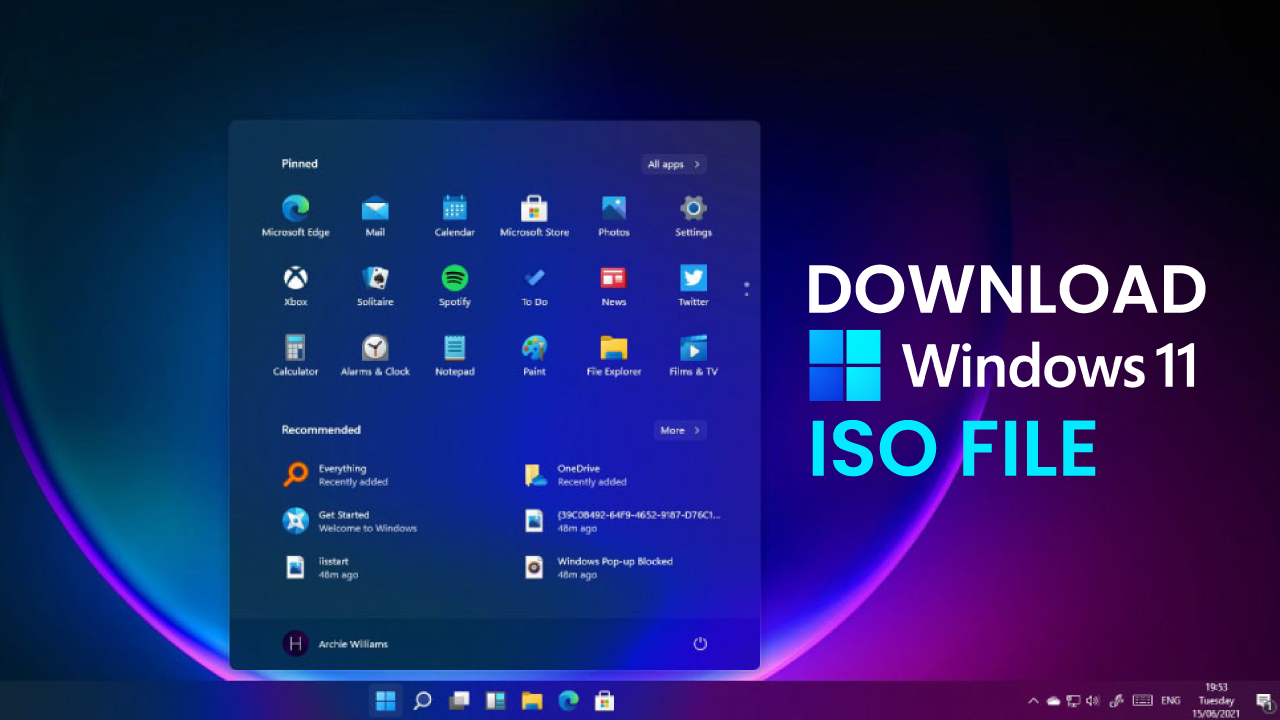
If you’re planning a clean Windows installation, upgrading multiple computers, or creating a bootable USB drive, downloading a Windows 11 ISO is one of the most reliable methods available. Unlike automatic updates, an ISO file gives you complete control over when and how you install the operating system.
Whether you’re replacing an old hard drive, setting up a new PC, or simply prefer a fresh installation instead of an in-place upgrade, having the official Windows installation image can save time and prevent unnecessary complications.
This guide explains what a Windows 11 ISO is, how to download it safely, who should use it, and the best practices for installation.
What Is a Windows 11 ISO?
A Windows 11 ISO is a complete disk image containing all the files required to install Microsoft’s latest operating system. Think of it as a digital version of a Windows installation DVD.
Instead of relying on online updates, the ISO lets you:
- Perform a clean installation
- Upgrade compatible computers manually
- Create a bootable USB installer
- Repair an existing Windows installation
- Install Windows on virtual machines
Because everything is stored in one image file, it’s a convenient solution for both everyday users and IT professionals.
Why Use an ISO Instead of Windows Update?
Windows Update works well for most users, but it isn’t always the ideal option.
An ISO offers greater flexibility because you can install Windows whenever you choose, even without downloading files repeatedly. This is especially useful when working on multiple computers or when internet connectivity is limited.
Other advantages include:
- Cleaner installation with fewer leftover files
- Better troubleshooting options
- Faster deployment on several devices
- Easy backup of installation media
- Compatibility with virtual environments
For advanced users, having the installation image available provides an extra level of control over the setup process.
System Requirements Before Installing
Before installing Windows 11, make sure your computer meets Microsoft’s minimum requirements.
| Requirement | Minimum Specification |
|---|---|
| Processor | 64-bit, 1 GHz or faster, 2 or more cores |
| RAM | 4 GB |
| Storage | 64 GB or more |
| TPM | TPM 2.0 |
| Firmware | UEFI with Secure Boot |
| Graphics | DirectX 12 compatible |
| Display | HD (720p) or higher |
| Internet | Required during setup for many editions |
Meeting these requirements helps ensure smooth performance and long-term compatibility with future updates.
How to Download Windows 11 ISO Safely
The safest approach is downloading the installation image directly from Microsoft.
Avoid unofficial websites that modify installation files or bundle unwanted software. Official downloads receive security updates and contain the latest stable version.
The typical process is straightforward:
- Visit Microsoft’s Windows download page.
- Select the Windows 11 ISO option.
- Choose your preferred language.
- Download the image file.
- Verify you have enough storage space before installation.
Downloading from trusted sources reduces security risks and ensures installation integrity.
Creating a Bootable USB Drive
After downloading the ISO, most users create a bootable USB drive.
You’ll generally need:
- A USB drive with at least 8 GB capacity
- The downloaded ISO file
- A USB creation tool
Once prepared, restart the computer, boot from the USB device, and follow the installation instructions.
This approach is ideal for new PC builds, replacing storage drives, or reinstalling Windows from scratch.
Clean Installation vs Upgrade
Choosing the right installation method depends on your situation.
| Feature | Clean Installation | Upgrade Installation |
|---|---|---|
| Keeps Files | No | Yes |
| Removes Old Problems | Yes | Limited |
| Installation Speed | Moderate | Faster |
| Best For | New PCs or fresh start | Existing Windows users |
| Recommended Backup | Essential | Still recommended |
If your current Windows installation has become slow or unstable, a clean installation often delivers the best long-term performance.
How Windows 11 ISO Works in Practice
Imagine a family replacing an aging hard drive with a faster SSD. Instead of cloning years of accumulated files and software issues, they install Windows using the official ISO.
The result is a noticeably faster startup, quicker application launches, and a cleaner desktop experience. Since important documents were backed up beforehand, the transition is smooth and the computer feels almost brand new despite its existing hardware.
Common Installation Mistakes to Avoid
Even experienced users occasionally overlook important preparation steps.
Avoid these common mistakes:
- Forgetting to back up personal files
- Installing on the wrong drive
- Using unofficial installation images
- Ignoring firmware updates
- Disconnecting power during installation
- Skipping driver updates afterward
Taking a few extra minutes to prepare can prevent hours of troubleshooting later.
Tips for Better Performance After Installation
Once Windows 11 is installed, a few simple optimizations can improve your experience.
Consider these recommendations:
- Install the latest hardware drivers.
- Run Windows Update immediately.
- Enable Storage Sense to manage disk space.
- Remove unnecessary startup applications.
- Install only software you actually use.
- Create a restore point after completing setup.
These habits help maintain performance over time.
I recently helped reinstall Windows on an older laptop using the official installation image, and the difference in responsiveness after the clean setup was immediately noticeable.
Is Windows 11 ISO Safe?
Yes—provided it comes directly from Microsoft’s official source.
Using authentic installation media ensures:
- Verified installation files
- Current security updates
- Stable system performance
- Better compatibility
- Reduced malware risk
Downloading modified copies from unknown websites may expose your computer to security vulnerabilities or unexpected software changes.
Who Should Download the ISO?
A Windows installation image is especially useful for:
- PC enthusiasts
- Gamers building custom systems
- IT administrators
- Students reinstalling laptops
- Users upgrading storage drives
- Anyone performing a clean installation
For casual users who simply want routine updates, Windows Update may still be sufficient. However, having the ISO available offers flexibility whenever a fresh installation becomes necessary.
Also Read:Best Budget Gaming Chairs for Comfort & Performance
Conclusion
A Windows 11 ISO provides one of the most dependable ways to install Microsoft’s latest operating system. Whether you’re building a new computer, repairing an existing installation, or starting fresh after years of accumulated software, the ISO gives you complete control over the process.
By downloading the official installation image, preparing a bootable USB drive, and backing up important files beforehand, you can complete the installation with confidence. For users who value reliability, flexibility, and long-term system performance, the ISO remains the preferred choice for installing Windows 11.
Frequently Asked Questions
Is Windows 11 ISO free to download?
Yes. Microsoft allows users to download the installation image free of charge. A valid product license is required for activation.
Can I install Windows 11 without an internet connection?
Yes, a clean installation can be performed from a bootable USB created from the ISO, although certain editions may require an internet connection during initial setup.
How large is the Windows 11 ISO?
The file size typically ranges from approximately 5 GB to 6 GB, depending on the version and language.
Can I upgrade Windows 10 using the ISO?
Yes. You can run the setup file from within Windows 10 to perform an upgrade while keeping your files and applications, provided your PC meets the hardware requirements.
Is a bootable USB required?
Not always. You can mount the ISO directly inside Windows for upgrades, but a bootable USB is recommended for clean installations or installing Windows on a new computer.