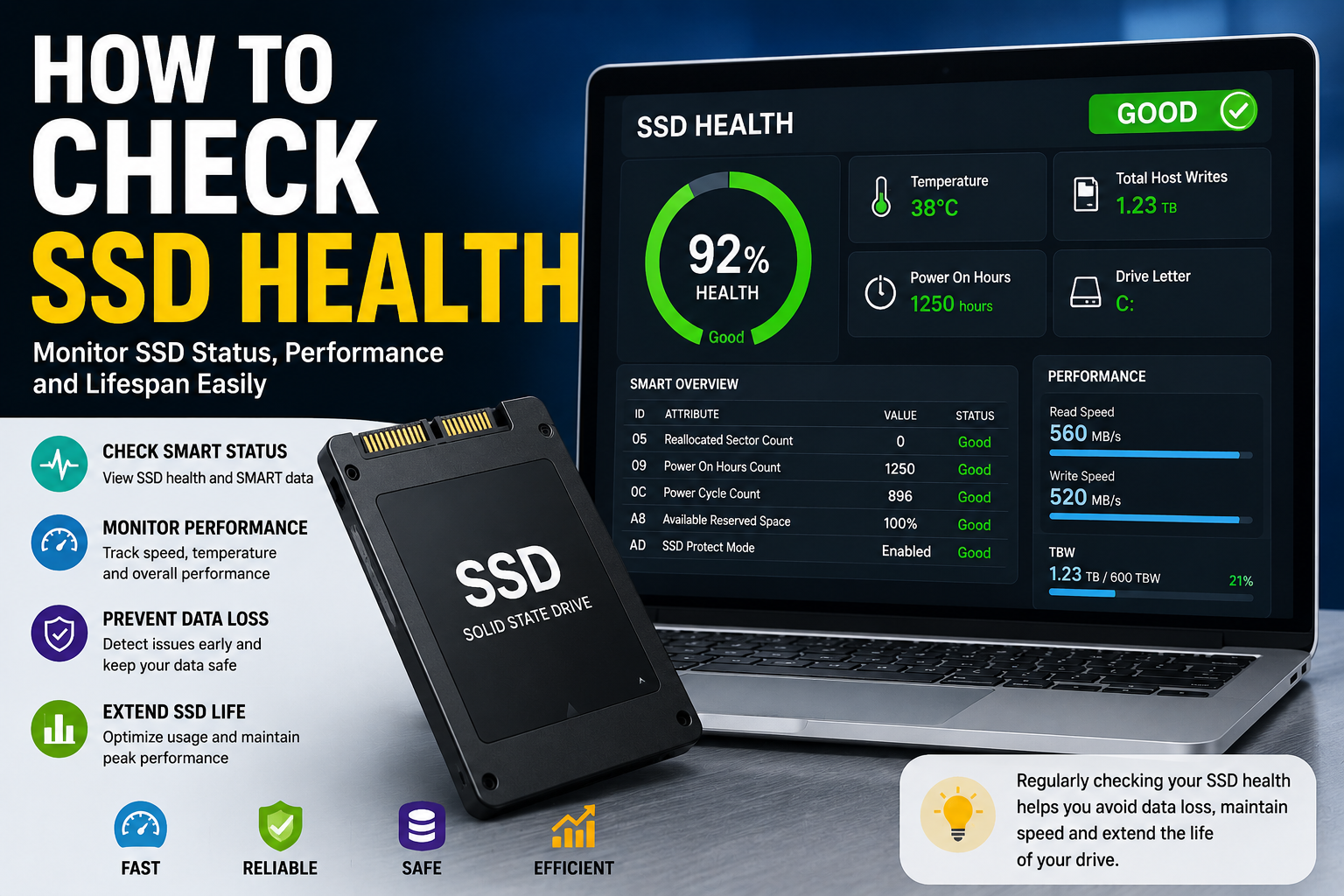
Solid-state drives (SSDs) have transformed the way computers store and access data. They are faster, quieter, and more reliable than traditional hard drives. However, like any piece of hardware, SSDs have a limited lifespan. Knowing how to check SSD health can help you identify potential problems early, protect important files, and avoid unexpected system failures.
Whether you’re a casual user, a gamer, or a professional who depends on fast storage, understanding the condition of your drive is an essential part of maintaining your computer.
Why SSD Health Matters
Unlike conventional hard drives that rely on spinning disks, SSDs use flash memory cells to store information. Every memory cell can only be written and erased a certain number of times before it begins to wear out.
A healthy drive ensures:
- Faster boot times
- Stable system performance
- Reduced risk of data loss
- Better application responsiveness
- Longer device lifespan
Imagine you’re working on an important project with a tight deadline. Suddenly, your computer starts freezing, files become inaccessible, and error messages appear. In many cases, these symptoms can be traced back to a storage device that’s nearing failure. Regular monitoring helps prevent such situations.
Common Signs Your SSD May Be Failing
Before diving into diagnostic methods, it’s helpful to recognize warning signs that indicate your drive may need attention.
Some common symptoms include:
- Frequent system crashes
- Slow file transfers
- Corrupted files
- Applications failing to load
- Read or write errors
- Unexpected system freezes
- Difficulty booting the operating system
These issues don’t always mean the SSD is dying, but they warrant further investigation.
Understanding SSD Health Metrics
Modern SSDs constantly track their own condition through a monitoring system known as SMART (Self-Monitoring, Analysis, and Reporting Technology).
SMART data provides valuable insights such as:
- Remaining lifespan
- Total data written
- Temperature levels
- Error rates
- Bad block count
- Drive wear percentage
By reviewing these metrics, you can get a clear picture of the drive’s overall condition.
Methods to Check SSD Health
There are several ways to evaluate the status of a solid-state drive. Some are built directly into your operating system, while others rely on specialized software.
Quick Comparison of SSD Health Check Methods
| Method | Difficulty Level | Information Provided | Best For |
|---|---|---|---|
| Command Prompt | Easy | Basic drive status | Quick checks |
| Built-in System Tools | Easy | General health overview | Everyday users |
| Manufacturer Software | Medium | Detailed diagnostics | Advanced monitoring |
| Third-Party Utilities | Medium | Comprehensive statistics | Power users |
Each option serves a different purpose, making it useful to combine multiple approaches when assessing storage health.
Check SSD Health Using Command Prompt
Windows includes a simple command that can quickly reveal whether the drive reports any major issues.
Steps:
- Open Command Prompt as Administrator.
- Type:
wmic diskdrive get status- Press Enter.
If the result displays “OK,” the drive has not detected critical problems. However, this basic check doesn’t provide detailed information about wear levels or lifespan.
Think of it like checking whether a car starts. It confirms basic functionality but doesn’t reveal the condition of the engine, brakes, or tires.
Use Windows Drive Monitoring Tools
Windows also includes tools that can help identify storage-related issues.
Check Drive Health in Settings
Recent versions of Windows provide storage health information directly within system settings.
Navigate to:
Settings → System → Storage → Advanced Storage Settings → Disks & Volumes
Select your SSD and review any available health information.
Depending on your drive and operating system version, you may see:
- Estimated remaining life
- Temperature readings
- Available spare capacity
This provides a user-friendly overview without requiring additional software.
Check SMART Data with Manufacturer Software
Most SSD manufacturers offer dedicated utilities that provide in-depth health reports.
Examples include:
- Samsung Magician
- Crucial Storage Executive
- WD Dashboard
- Kingston SSD Manager
These tools often display:
- Drive temperature
- Firmware version
- Remaining life percentage
- Total bytes written
- Performance benchmarks
In my experience, manufacturer utilities usually provide the most reliable and easy-to-understand health information because they’re specifically designed for the hardware they’re support.
Use Third-Party SSD Monitoring Software
If you manage multiple storage devices from different brands, third-party applications can simplify monitoring.
Popular options include:
- CrystalDiskInfo
- Hard Disk Sentinel
- AIDA64
- HWMonitor
These programs gather SMART data and present it in a readable format.
Pay particular attention to:
Health Percentage
Many tools calculate an overall health score. While not a perfect measurement, it offers a convenient snapshot of the drive’s condition.
Temperature
Most SSDs perform best below 70°C. Consistently high temperatures may reduce lifespan and affect performance.
Total Host Writes
This metric shows how much data has been written to the drive over time. Comparing this figure with the manufacturer’s endurance rating helps estimate remaining longevity.
Understanding SSD Lifespan Ratings
Manufacturers often specify endurance using TBW (Terabytes Written).
For example:
- Entry-level SSD: 150–300 TBW
- Mid-range SSD: 300–600 TBW
- High-end SSD: 600+ TBW
If your drive has a rating of 600 TBW and you’ve written only 120 TB, it likely still has significant life remaining.
This is one reason SSD failures are often less sudden than people assume. Wear tends to accumulate gradually, allowing monitoring tools to detect potential issues long before complete failure occurs.
What to Do If SSD Health Is Declining
Discovering that your drive is wearing out doesn’t necessarily mean immediate replacement is required.
Consider these steps:
Back Up Important Data
Always maintain copies of critical files on external storage or cloud services.
Update Firmware
Manufacturers occasionally release firmware updates that improve stability and reliability.
Free Up Storage Space
Keeping some unused space available allows the controller to manage data more efficiently.
Monitor More Frequently
If health metrics begin declining, check them monthly instead of annually.
Plan for Replacement
When health percentages drop significantly or SMART errors increase, start preparing for a replacement drive before failure occurs.
Tips to Extend SSD Life
Although modern SSDs are highly durable, good practices can help maximize longevity.
- Keep operating systems updated.
- Avoid unnecessary write-intensive workloads.
- Maintain adequate free storage space.
- Ensure proper cooling and airflow.
- Use reliable power protection.
- Enable TRIM support if available.
These habits help reduce wear and maintain consistent performance over time.
Also Read:Best Webcams for Zoom: Top Picks for Clear Video Calls
Conclusion
Learning how to check SSD health is one of the simplest yet most valuable maintenance tasks for any computer user. By monitoring SMART data, reviewing manufacturer diagnostics, and paying attention to warning signs, you can detect potential issues before they become serious problems.
A healthy SSD contributes to faster performance, greater reliability, and improved data security. Rather than waiting for symptoms to appear, make storage monitoring a regular part of your system maintenance routine. A few minutes of checking today can save hours of frustration and prevent costly data loss in the future.
Frequently Asked Questions
How often should I check my SSD health?
For most users, checking every two to three months is sufficient. Heavy users who frequently transfer large files may benefit from monthly monitoring.
What SSD health percentage is considered bad?
Many experts recommend planning a replacement when health falls below 20–30%, though actual usability varies by model and workload.
Can an SSD fail suddenly?
Yes, but many SSDs provide warning signs through SMART data and declining health indicators before complete failure occurs.
Does SSD health affect performance?
It can. As wear increases, some drives may experience slower write speeds, higher error rates, or reduced responsiveness.
Is 90% SSD health good?
Absolutely. A drive reporting 90% health is generally considered to be in excellent condition with plenty of usable life remaining.
Can I repair a damaged SSD?
Physical wear cannot usually be reversed. However, firmware updates, data cleanup, and troubleshooting can sometimes resolve performance issues that are mistaken for hardware failure.